4.0. Reporting, Batch Send and Reconciliation
GST InvoiceNow Submission Log
Go to … Reporting Loading
Check IRAS Massage … Reporting Loading > Send Successful or Acknowledged

STEPS:
- Hover to the TOOLS tab found at the top of the screen.
(Refer to picture above) - Click on TOOLS > GST INVOICENOW SUBMISSION LOG
- Click on the ellipses (...) to load the page.
- Pivot to the "IRAS Message'' Category. (Both ''Acknowledged'' and ''Successful'' means that it has been successfully logged.)
GST InvoiceNow Batch Send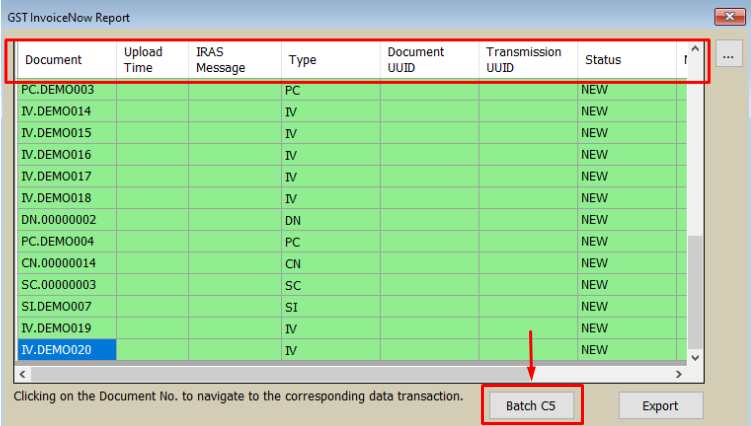
STEPS:
- Click on TOOLS > GST INVOICENOW SUBMISSION LOG
- Click on the ellipses (...) to load the page.
- Click on "Batch C5" to send all the transaction load in the page.
GST InvoiceNow Reconciliation
STEPS:
- Hover to the TOOLS tab found at the top of the screen.
- Click on TOOLS > GST INVOICENOW REPORTING
- Click on the ellipses (...) to load the page.
- Pivot to the 'STATUS' category on the table.
a. NEW - NOT SENT: Document has not been sent to C5
b. UPDATE - NOT SENT: Document has been updated/edited after being sent to C5
c. SEND DIABLED/ERROR: Document sent ot C5 contains error, has failed. - Users may choose to export this table by clicking on the 'EXPORT' button at the bottom right.
This will export the table into txt. format.
(Refer to below picture)
Related Articles
GST API Frequently Asked Questions.
GST Seamless Filing User Guide Link https://support.ocisystem.com/portal/en/kb/articles/gst-api-training-30-4-2024-1#GST_API_Training_Slides How can I ensure the system submission was sent successfully? You can log into the https://mytax.iras.gov.sg ...1.0. The Activation Process
Required Access Control Permission To be able to access the GST InvoiceNow functions, you must assign the permissions to the user. Maintenance -> Access Control -> User GST InvoiceNow Administrator: can register and deregister for GST InvoiceNow. GST ...6.0. The Deactivation Process
The Deactivation Process STEPS: Similarly, at the top of your screen, Click on TOOLS > GST INVOICENOW - DEACTIVATION. Fill up the relevant mandatary fields* in the Deactivation page that pops up. - Email Address - Contact Name - Contact Number - ...GST Payment or Refund from IRAS
Amount Payable to IRAS Once you have completed checking of your GST transactions using F5 Detail report, you may generate the GST F5 report for your submission to IRAS. In this scenario, your company has to make a payment of S$19,965.87 to IRAS. The ...2.0. PEPPOL Data Submission
PEPPOL Data Submission - Users input data entries. Sales Invoice STEPS: Click on SALES > INVOICE Select entry , Send invoice via PEPPOL This will automatically trigger GST InvoiceNow data submission. Sales Credit Note STEPS: Similar to that of a ...