8.0. Recurring Module
Recurring Module
The recurring module will accelerate the creation of documents based on the date and other conditions as set up. Generation of the documents can be done either automatically or manually.

Important criteria to take note:
- Foreign Currency
- Document rates will follow the initial document’s rate
- Inventory items
- Cost of goods Sold (COGS) value will follow the initial document’s rate.
- User needs to ensure there is sufficient inventory quantity for each recurrence event.
Recurring Setting
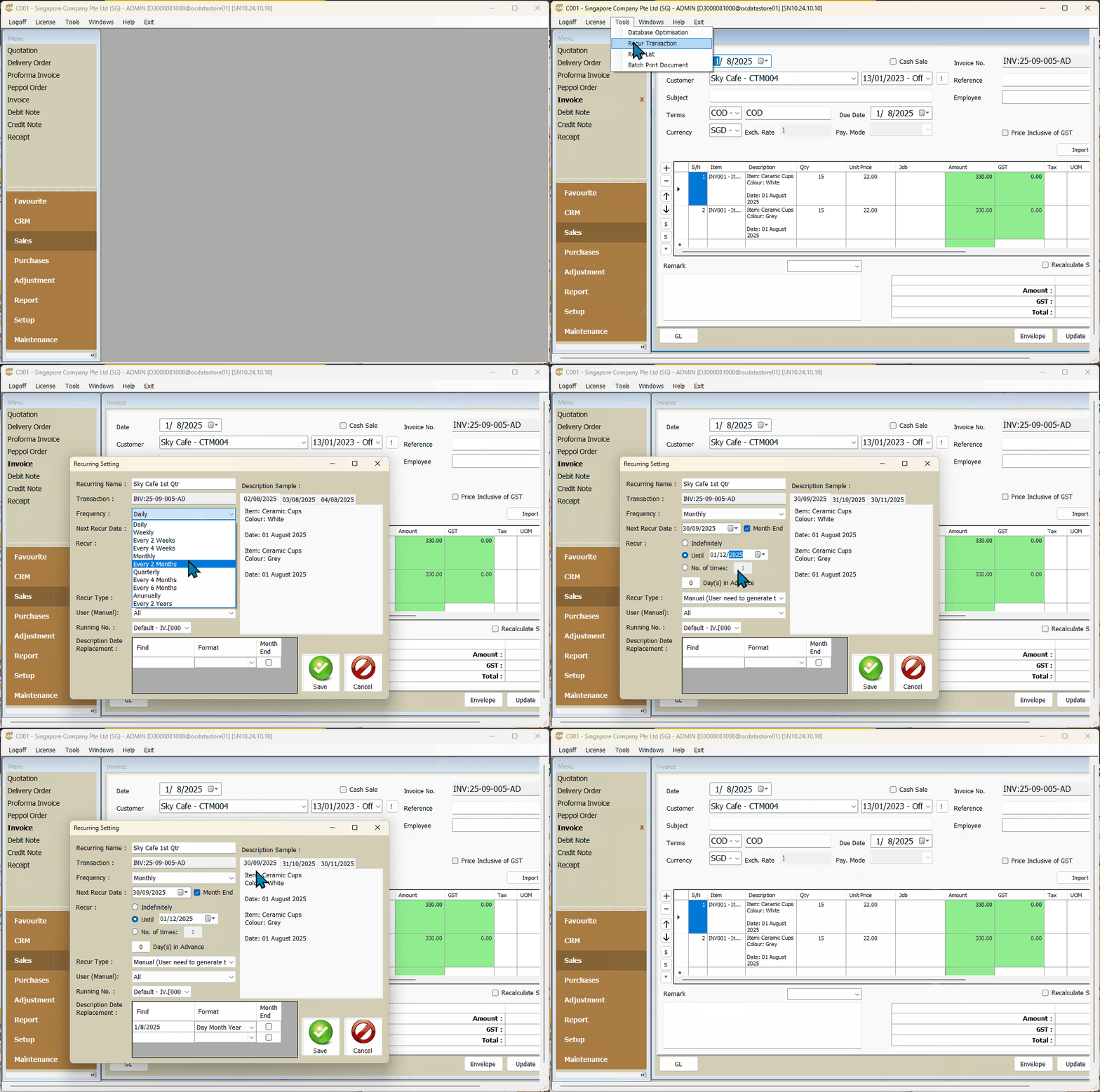

STEPS:
- Click SALES > INVOICE
- Search for the invoice to be used as the base document
- Click Edit
- Click TOOLS > RECUR TRANSACTION
- Fill up the fields with necessary information.
- Recurring Name - Give a meaning event name
- Transaction - Ensure the correct base document
- Frequency
- Next Recur Date
- Month End
- Recur
- Recur Type
- User (Manual) - Select default option "All"
- Running No. - Ensure correct running number series
- Description Date Replacement
- Description Sample
- Click SAVE
Field Defintions:
- Recurring Name - This field is to provide the event name. The information here is only for user reference.
- Transaction - This field indicates the the document number that you are using as the base. Each new
document created will be dupcliated from the this base document.
- Frequency - The frequency dropdown specify how often this event gets triggered.
- Next Recur Date - This the date you want the event to be triggered.
- Month End - Tick so that the event will be
triggered on the last day of each month.
- Recur - The option here specify when to end the recurring event. The ‘Until’ option will stop the
event when the next event passes the specified date. ‘Days in Advance’ will create the document the
number of days in advance of the date specified in ‘Next Recur Date’. It is limited to a max of 30 days.
- Recur Type - This option specifies if the generation is automatically or manually created. For automatic ,
the generation process begins when the user logs in. When the ‘Recur Type’ is set to manual, you can
use the ‘User(Manual)’ option to specify which user has the permission to generate
documents for this event.
- User(Manual) - Option to specify which user has the permission to generate documents for this event. 'All' is selected by default.
- Running No. - If you require to use a different set of running number, you can set which running number
set you want to use.
- Description Date Replacement - This will search each row’s description to match what is entered in the ‘find’ column.
Note the search is case sensitive. If there are multiple dates, each date will need to be entered into a
row. If the date needs to be displayed as the end of the month, tick the ‘Month End’ box.
- Description Sample - This will show you a preview of the description that will be created.
Please check that it shows the correct information.
Manual Generation of Documents
STEPS:
- Click TOOLS > RECUR LIST
- Recurring events that are triggered, will be ticked.
- Right-click on the event you want to generate the invoice for.
- Select Generate
- Invoice created will be listed in the bottom of the screen.
Fields definition:
- Name - This is the name given to the event. For Recur Type set to automatic, the ‘Name’ field will
turn to red if there was an error during generation.
- Next Recur Date - This will show when will be the next date the document will be ready for generation.
- Day(s) of Advance = This will show if the number of days in advance if it was set.
- Frequency = This will what is the frequency period set.
- Until/Count Left - If ‘Day(s) of Advance’ was set this number will decrease as the time period comes closer. Or
it will show when this event will end.
- Document - This is the base document this recursion will follow.
- User - This will display which user is authorized to generate this document. If blank, this indicates
all users are allowed.
- Recur Type - M is for manual generation. A is for automatic generation.
Related Articles
Accounting add-on: Recurring Document Module
This is a paid addon module, features described here are only available to those who purchased it. User Guide PDF can be downloaded from 'Attachment' section below.11.0. Default Setup
Default Settings Default Settings allow users to set thei preferred recurring option for each module. If this setting is done up, default options will be prefilled when creating a new document. (To Note: Existing Documents will not be affected.) ...Tax registration module changes
With the release of the new GST rate updates new changes have been added to the tax registration module. These restrictions have been added to reduce user level errors: 1. new tax code can not be added by user. the module will now disallow creation ...Accounting add-on: Multi-Price Module
This is a paid addon module, features described here are only available to those who purchased it. User Guide PDF can be downloaded from 'Attachment' section below.How to enable Module Access by Roles (Cross Company)?
This is happen because some of the modules are added new to the OCi Accounting Software V10. To enable access to the Un-Available Module do the Following... Click the MAINTENANCE -> ACCESS CONTROL -> ROLES (CROSS COMPANY) Click over ...